

Are you finding yourself trying to load up a web page only to be presented with an error like the one above: ‘DNS_PROBE_FINISHED_NXDOMAIN’. Don’t worry you are not alone! This is the number 1 browser error in common use especially on Google Chrome and is a very frustrating situation to be put in if you do not know what the cause of the problem may be. This guide looks at precisely what this error is and what it may mean, why it happens and how to resolve this error using the different available steps.
Table of Contents
What Is DNS_PROBE_FINISHED_NXDOMAIN?
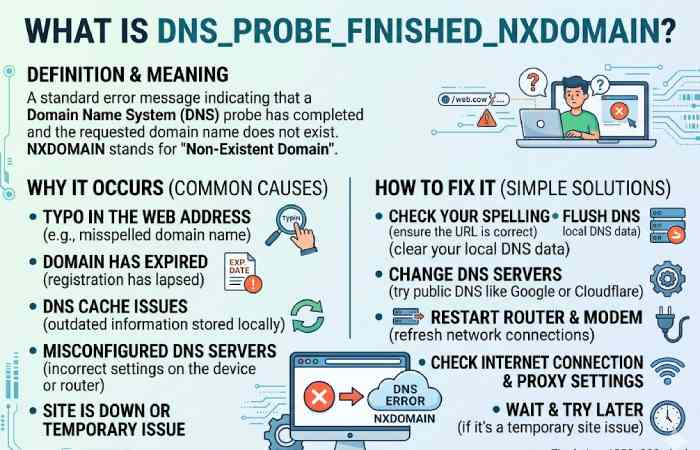
DNS_PROBE_FINISHED_NXDOMAIN is a DNS (Domain Name System) error that occurs when your browser cannot resolve a domain name into an IP address.
In simple terms:
- You type a website (e.g., example.com)
- DNS tries to find its IP address
- If it fails → you get this error
Why This Error Happens
- Incorrect Domain Name
- Typos like gooogle.com
- Expired or non-existent domains
- DNS Server Issues
- ISP DNS not responding
- Slow or outdated DNS cache
- Network Configuration Problems
- Corrupt network settings
- Firewall or antivirus blocking DNS
- Browser Cache Problems
- Old or corrupted DNS cache stored in Chrome
- Hosts File Errors
- Manual entries blocking domains
How to Fix DNS_PROBE_FINISHED_NXDOMAIN on Android Devices
Facing the DNS_PROBE_FINISHED_NXDOMAIN error on your Android phone? This usually means your device cannot resolve a website’s domain name. The good news—most fixes take just a few minutes.
Below are step-by-step solutions, starting from the simplest.
Check the Website URL
- Make sure there are no spelling mistakes
- Try opening the same site in another browser or device
- If it doesn’t work anywhere → the site may be down
Turn Airplane Mode ON/OFF (Quick Reset)
- Enable Airplane Mode for 30 seconds
- Turn it OFF
- Reconnect to WiFi or mobile data
This refreshes your network connection instantly.
Restart Your Android Device
- Press and hold the power button
- Tap Restart
Simple, but often effective for temporary network glitches.
Clear Browser Cache (Chrome Example)
Steps:
- Open Google Chrome
- Tap ⋮ (three dots) → Settings
- Go to Privacy & Security
- Tap Clear Browsing Data
- Select:
- Cached images & files
- Cookies
- Tap Clear Data
Change DNS Settings (Most Effective Fix)
Method 1: Private DNS (Recommended)
- Go to Settings → Network & Internet
- Tap Private DNS
- Select the Private
Best Free DNS Servers for Faster Internet (2026)
| DNS Provider | Primary DNS | Secondary DNS | Best For | Key Features | Price | Resource Link |
| Cloudflare DNS | 1.1.1.1 | 1.0.0.1 | Speed & Privacy | Ultra-fast global network, no IP logging, DNS over HTTPS/TLS | Free | https://1.1.1.1 |
| Google Public DNS | 8.8.8.8 | 8.8.4.4 | Reliability | High uptime, global infrastructure, fast resolution | Free | https://developers.google.com/speed/public-dns |
| Quad9 DNS | 9.9.9.9 | 149.112.112.112 | Security | Blocks malicious domains, strong privacy, DNSSEC support | Free | https://www.quad9.net |
| OpenDNS (Cisco) | 208.67.222.222 | 208.67.220.220 | Custom Control | Parental controls, phishing protection, customizable filtering | Free / Paid | https://www.opendns.com |
| AdGuard DNS | 94.140.14.14 | 94.140.15.15 | Ad Blocking | Blocks ads, trackers, malware domains | Free / Paid | https://adguard-dns.io |
| CleanBrowsing DNS | 185.228.168.9 | 185.228.169.9 | Family Safety | Filters adult content, safe browsing modes | Free / Paid | https://cleanbrowsing.org |
| Comodo Secure DNS | 8.26.56.26 | 8.20.247.20 | Security | Malware & phishing protection | Free | https://www.comodo.com |
| Alternate DNS | 76.76.19.19 | 76.223.122.150 | Ad Blocking | Blocks ads and tracking domains | Free | https://alternate-dns.com |
How to Fix DNS_PROBE_FINISHED_NXDOMAIN (Step-by-Step)
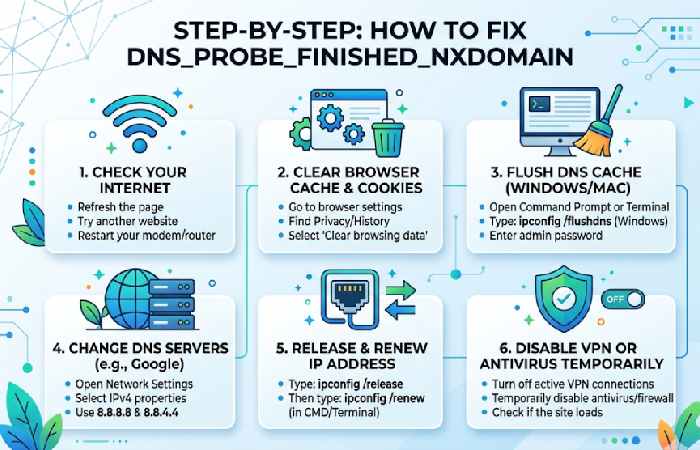
Check the URL Carefully
- Ensure no spelling mistakes
- Try accessing the site on another device
Restart Your Internet Connection
- Turn off router for 5 minutes
- Restart your device
Clear DNS Cache (Most Effective Fix)
On Windows:
- Open Command Prompt (Admin)
- Run:
ipconfig /flushdns
On Mac:
sudo dscacheutil -flushcache
Change DNS Server (Highly Recommended)
Switch to faster and reliable DNS:
| DNS Provider | Primary | Secondary |
| Google DNS | 8.8.8.8 | 8.8.4.4 |
| Cloudflare | 1.1.1.1 | 1.0.0.1 |
Reset Chrome DNS Cache
- Open Chrome
- Go to:
chrome://net-internals/#dns
- Click Clear Host Cache
- Reset Network Settings
Windows:
netsh winsock reset
netsh int ip reset
Restart your system afterward.
Disable VPN or Antivirus Temporarily
- VPNs can interfere with DNS
- Antivirus may block domain requests
Check Hosts File
Path (Windows):
C:\Windows\System32\drivers\etc\hosts
Remove any suspicious domain entries.
Advanced Fixes (For Persistent Issues)
Renew IP Address
ipconfig /release
ipconfig /renew
Update Network Drivers
- Go to Device Manager
- Update network adapter
DNS_PROBE_FINISHED_NXDOMAIN on Different Browsers
| Browser | Error Message Shown | Common Causes | Quick Fixes | Special Notes |
| Google Chrome | DNS_PROBE_FINISHED_NXDOMAIN | DNS cache issues, Chrome DNS cache conflict, wrong DNS settings | – Clear Chrome DNS cache (chrome://net-internals/#dns) – Flush system DNS – Change DNS to Google (8.8.8.8) |
Chrome uses its own DNS cache, so clearing browser cache alone may not fix it |
| Microsoft Edge | This site can’t be reached (DNS address could not be found) | Network misconfiguration, DNS server failure, corrupted cache | – Restart network – Flush DNS – Reset Edge settings |
Based on Chromium, so fixes are similar to Chrome |
| Mozilla Firefox | Hmm. We’re having trouble finding that site | DNS over HTTPS (DoH) issues, DNS server problems, incorrect proxy settings | – Disable/enable DoH – Change DNS settings – Check proxy settings |
Firefox handles DNS differently due to DoH, which may cause conflicts |
Common Mistakes to Avoid
- Ignoring simple URL typos
- Not restarting router after changes
- Using slow ISP DNS
- Forgetting to clear browser cache
Should You Use Custom DNS or ISP DNS?
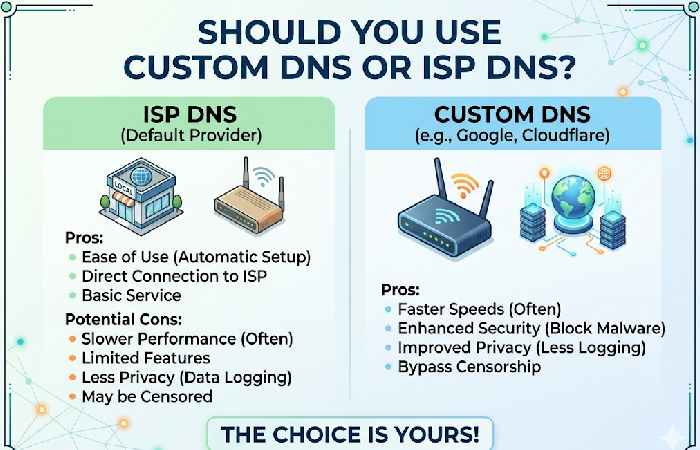
Choosing between custom DNS and your ISP’s default DNS can directly impact your internet speed, privacy, and browsing reliability—especially when dealing with errors like DNS_PROBE_FINISHED_NXDOMAIN.
Let’s break it down clearly so you can decide what’s best for you.
Custom DNS vs ISP DNS (Quick Comparison)
| Factor | Custom DNS (Google, Cloudflare, etc.) | ISP DNS |
| Speed | Usually faster (optimized global servers) | Can be slower or inconsistent |
| Reliability | High uptime and redundancy | Depends on ISP quality |
| Privacy | Better (some don’t log data) | ISP may track browsing activity |
| Security | Advanced protection (malware blocking, DNSSEC) | Basic protection |
| Customization | Yes (parental control, filters) | Limited or none |
| Ease of Setup | Requires manual setup | Pre-configured |
FAQs
What does DNS_PROBE_FINISHED_NXDOMAIN mean?
It means the DNS server cannot find the IP address of the domain you’re trying to visit.
Is this error from my side or the website?
It can be both:
- Your DNS/network issue
- Website domain expired or misconfigured
Can changing DNS fix the problem?
Yes, switching to Google or Cloudflare DNS solves it in most cases.
Does VPN cause this error?
Yes, VPNs can interfere with DNS resolution and cause this issue.
Is it a virus?
No, it’s a network/DNS issue—not malware.
Final Conclusion
While the DNSPROBEFINISHED_NXDOMAIN might sound like it would be difficult to fix, it is usually one of only a few, quite easy fixes, needed to correct. By flushing your DNS cache, using a reliable faster DNS provider, or fixing a typing error in your URL you should be able to fix this without too much of a bother and with limited IT knowledge. Also in the future hopefully the improvement may also boost your internet speed and reliability.
